Most of what people eat and drink is not new. The same coffee before nine, the same handful of almonds at four, the sandwich assembled the same way every working day. Describing those again and again is the most tedious part of keeping a food diary, and it is where most diaries quietly stop. Sayved’s answer is the usual: a saved entry with a name and a picture that you log with one tap.
How do saved meals work in Sayved?
You log the thing once, in whatever way suits you. Say “a rye sandwich with ham, cheese and a little butter”, photograph it, or type it. Sayved structures it as normal, with calories and macros as estimates with ranges. If something is off, you correct it in the entry, exactly as you would any other.
Then you open that entry and tap Save as a usual. The name is filled in from the entry and you can change it to whatever you call it at home: “My sandwich”, “Work lunch”, “Mum’s soup”. You pick a picture, and that is the whole setup.
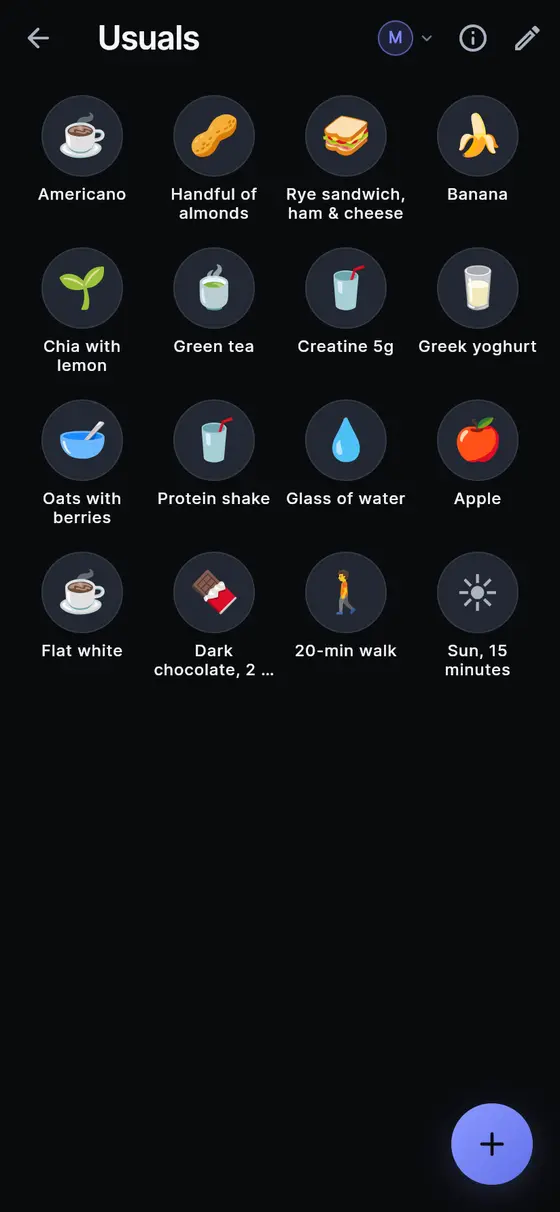
From then on it lives behind the same round button you use for everything else. Tap +, then Usuals, and a grid of round pictures appears with names underneath. On an ordinary phone about two dozen fit on the screen at once, and the grid scrolls if you have more. Tap one and it is logged at the current time. A tick flashes on the picture you touched and the usual confirmation appears at the top, with an Undo button in case your thumb landed on the wrong one.
There is no confirmation dialog in between, on purpose. A one-tap log that asks “are you sure?” is a two-tap log. Undo covers the mistake without slowing down every correct tap. Two coffees is simply two taps.
Why save a meal instead of saying it again?
Speed is the obvious reason. Three taps and no keyboard, from any screen, beats describing the same breakfast for the hundredth time.
Consistency is the less obvious one. Every time you describe a handful of almonds, an AI model makes a fresh estimate, and fresh estimates drift. A usual files exactly the same numbers every time, with the same range and confidence it was saved with. Your weekly totals stop wobbling because of how you happened to phrase a snack on Tuesday.
And it needs nothing from the network. The reading of the entry happened once, when you saved it. A tap only writes that saved entry into the log on your phone. It does not use your daily AI allowance, it works on a plane or in a lift with no signal, and if your trial ends, every usual you have saved keeps working.
Pictures, names and finding things fast
People remember pictures and positions faster than words, so every usual has both a picture and a name.
The picture can be:
- Automatic. Sayved picks an emoji from the name: a coffee cup for an Americano, nuts for almonds, a sandwich for a sandwich. Nothing to set up.
- An emoji you choose. Pick from a short grid of food, drink, health and activity symbols, or type any emoji from your keyboard.
- A photo. Take one, choose one from your gallery, or reuse the photo from the entry you are saving. It is cropped to a circle and kept on your phone. It is never sent anywhere and never attached to the entries the usual creates, because it shows a different day’s plate.
The order is yours and it never changes by itself. Usuals do not reshuffle by how often you tap them, so the coffee stays where your thumb learned it is. Reorder them in Settings → Usuals by dragging. Once you have more than two dozen, a search box appears at the top of the grid.
Usuals and routines: which one do you want?
Sayved also has one-tap routines, and the two are built for different jobs.
Routines come to you. A routine sits on the Today tab at the part of the day you chose, clears when you tick it, and can send a reminder. Medication, a daily supplement stack and water every two hours are routines.
Usuals wait for you. They appear only when you open them. That fits the things you have whenever you have them: a second coffee, a snack, a drink after the gym.
You do not have to choose. Your active routines also appear at the bottom of the Usuals grid with a small repeat badge. If a routine is due and you tap it there, it is ticked off Today as if you had ticked it on the card. If it has already been done, the tap logs an extra one and leaves the routine alone. That covers the common case of having the morning coffee earlier than planned.
A different amount, a different time
The usual is what you normally have, not a rule. Long-press any usual to get three options:
- Log a different amount. Half the usual portion, or a double, without changing the saved usual. The numbers and their ranges are scaled together.
- Log at another time. For the almonds you had at four and are logging at six.
- Edit, to change the name, picture, category or saved values.
The same sheet tells you when you last logged that usual, read from your own entries. It answers “did I already have my coffee?” without a counter anywhere.
Other ways to add usuals
Saving from an entry is the main way, but there are two more in Settings → Usuals → New usual:
- Pick from my log shows what you have logged over the last month with repeats merged, so twenty coffees appear as one row. Tick several and each becomes a usual.
- Describe a new one. Type “chia seeds with lemon juice and a teaspoon of honey”. One AI reading builds the usual without adding anything to today’s log. After that it never needs another call.
For something with nothing to measure, such as a stretch or ten minutes of sun, you can also create a blank usual with just a name and a category.
Outside the app
Long-press the Sayved icon on your home screen for Log a usual, alongside Voice note and Type an entry. Or add the Quick log widget, which shows up to four of your usuals. Tapping one opens Sayved, logs it and offers Undo. Medication, intimacy and other sensitive categories never appear on the widget, because anyone can read a home screen.
Everything a usual logs is an ordinary entry. It appears in your food diary, counts towards your macros and charts, can be edited or deleted like anything else, and is there when you ask your history a question months from now.
 Sayved